BurnInTest Linux x86 - FAQ
Q. I have downloaded BurnInTest for Linux, how do I
install it?
When you download BurnInTest, you should see "bitlinux.tar.gz"
on your desktop. If you have changed
your default download location, go to the download folder. Most Linux
desktop environment should
uncompress ".tar.gz" files through
it's Archive Manager when you double-click on the icon and present
you
with a window of its contents. Click on "Extract" and select
your destination folder that you want to
install BurnInTest for Linux. After which, you should see a folder named
"burnintest" in the destination folder.
Your software is now
installed and ready to be used.
Note: If you want to use the command line, "tar xvfz bitlinux.tar.gz"
should uncompress the archive and leave
you with a folder named "burnintest"
in the current working directory.
Q. I have successfully installed BurnInTest, how do I launch the application?
In most cases, double-clicking on the "burnintest"
icon in "burnintest" folder will launch BurnInTest application.
Note: In some systems, because BurnInTest searches in the current working
directory for certain files,
this approach will not work because the default working directory is your
home directory when you double-click
on the application's icon. If your system behaves this way, launch BurnInTest Linux from the command line.
Q. How do I launch BurnInTest Linux from the command line?
Launch the "Terminal" program and change your
current working directory to "burnintest" by typing
"cd path_to_burnintest_folder" (There is an easy way to copy
path by dragging the burnintest's icon into the terminal).
To be sure you have changed your working directory to "burnintest"
folder, issue a "pwd" command on the command line.
This will print the path of the working directory. In this case, "path_to_burnintest_folder"
should be the output. There are 32bit and 64bit folders in the burnintest folder, cd to the appropraite one and type ./bit_gui_x32 or ./bit_gui_x64 to launch the GUI version or ./bit_cmd_line_x32 or ./bit_cmd_line_x64 to launch the command line version.
Q. How can i make a live boot CD/USB?
Please see the guide: BurnInTest Linux - Live Boot
Q. Nothing happens when I double-click on BurninTest icon.
Try launching BurninTest from the command line as that will output start-up
error messages on the terminal console. Refer to "Q. How do I
launch BurnInTest Linux from the command line?" to see how you
can do that.
Using the "ldd" command on the BurnInTest executable will also display any missing libraries required, which will need to be installed before BurnInTest can be run.
Q. When running the command line version I see an error like "Error opening terminal: unknown."
This generally means your TERM environment variable is not set, which can happen when logging in to a system via SSH. You should be able to set it by typing "TERM=xterm" on the command line and you can check the value by using "echo $TERM".
In some cases you may also need to set the TERMINFO variable as well, eg "TERMINFO=/usr/share/terminfo".
Q. I get "segmentation fault" error when I try and run BurnInTest
Linux from the command line before any
tests were started. What should I do next?
Starting BurnInTest Linux with the command line paramter -d will log to a file called "debug.log" when the
application starts up to help us identify roughly where the application crashes. This file is in the same folder as the burnintest
executable. Please e-mail this file
to
help@passmark.com
so that we can help in resolving this issue. Please also include your system's profile in the e-mail as there are helpful to us. It could be (but not limited
to):
i. Which Linux distribution you are using?
Example: Mandrake, SUSE, Fedora Core 3, etc...
ii. Which kernel version?
Example: 2.6.9, 2.6.11, etc...
iii. What CPU are you using?
Example: Intel, AMD, etc...
iv. Is it 32-bit or 64-bit OS?
v. Is it 32-bit or 64-bit CPU?
Q. Missing libraries in Ubuntu 22.04/24.04/25.04
Missing Qt libraries libQt5PrintSupport and libQt5Quick can be installed using;
"sudo apt-get install libqt5printsupport5 libqt5quick5"
Q. Missing libncurses5 library in Ubuntu 21.10
Missing libcurses5 library can be installed in Ubuntu 21.10 using;
"sudo add-apt-repository universe"
"sudo apt-get install libncurses5"
Q. Missing libGLU library in CentOS 8
The workstation install of CentOS 8 should only be missing the libGLU library which can be instlled using "yum install libGLU".
Q. Missing webkit library in CentOS 7.5
The libQtWebKitWidgets library can not be found in a default install of CentOS. In order to install the required libraries you will need to enable the EPEL (Extra Packages for Enterprise Linux) using yum and then install the required library.
You can do this using these commands;
"yum install -y epel-release"
"yum install qt5-qtwebkit"
Q. Missing libraries in RedHat 8
RedHat 8 requires BurnInTest version 4.1 as it removed some dependencies that are no longer available for install in RedHat 8 (the QT webkit library). In a default "Server with GUI" install there will still be several missing Qt libraries and libGLU when trying to launch the GUI version of BurnInTest so you will need to install the following libraries;
- sudo yum install qt5-qtbase-gui mesa-libGLU
Q. Missing webkit library in RedHat 7.5
This should now be resolved by installing V4.1 of BurnInTest which removes the dependency on the QT webkit library. If you continue to use the old version of BurnInTest you can install the webkit as described below.
In a default "Server with GUI" and "KDE" software options checked install of RedHat 7.5 the libQt5WebKitWidgets and libQt5Webkit libraries will be reported as missing when trying to launch the GUI version of BurnInTest. We were able to launch BurnInTest by following this procedure;
- Download the qt5-qtwebkit-5.9.1-1.el7.x86_64.rpm package from here. Redhat 7.5 is running Qt version 5.9.2 but this package seems to be ok despite being a bit out of date.
- Try to install the package with rpm "sudo rpm -i qt5-qtwebkit-5.9.1-1.el7.x86_64.rpm"
- You may see missing dependencies "libQt5Positioning" and "libQt5Sensors", if so install the qt5-qtlocation and qt5-qtsensors "sudo yum install qt5-qtlocation" and "sudo yum install qt5-qtsensors" before trying the rpm install again.
After this BurnInTest reported no missing library and launched correctly on RedHat 7.5.
Q. Missing libraries in Fedora 26
Several Qt libraries and the libGLU library may be missing in default installations of Fedora 26 workstation.
You can install these libraries using;
"sudo dnf install qt5-qtwebkit"
"sudo dnf install mesa-libGLU"
Q. Missing libraries in Ubuntu 20.04
A default install of 20.04 may be missing the following libraries;
- libQt5Gui
- libQt5PrintSupport
- libQt5Widgets
- libQt5OpenGL
- libQt5Core
These can be installed using the command;
"sudo apt-get install libqt5opengl5 libqt5printsupport5 libqt5widgets5 libqt5gui5 libqt5core5a"
If you receive the error "Unable to locate package" you may need to run the command "sudo add-apt-repository universe" before trying to install the missing libraries.
Q. Missing libraries and ifconfig in Ubuntu 18.04.5
A default install of 18.04.5 will be missing the Qt5 libraries, curl and ifconfig.
These can be installed using "sudo apt-get install qt5-default libcurl4 net-tools".
If ifconfig is not installed then BurnInTest will not be able to gather infomation about the network cards and the network test will not work correctly.
Q. Missing libraries in Ubuntu 18.04
A default install of 18.04 is missing the following libraries;
- libQt5PrintSupport
- libQt5WebKitWidgets
- libQt5OpenGL
- libcurl
- libqt5WebKit
Most of these can be installed using the command;
"sudo apt-get install libqt5opengl5 libqt5printsupport5 libcurl4"
To avoid using the webkit library then make sure you are using BuinInTest V4.1 as it no longer requires it.
If you continue to use the older verison of BurnIntest the missing webkit library however needs to be downloaded, and it requires several other libraries as well;
Then the .deb packages need to be installed using dpkg;
"sudo dpkg -i libqt5qml5_5.9.5-0ubuntu1_amd64.deb"
"sudo dpkg -i libqt5quick5_5.9.5-0ubuntu1_amd64.deb"
"sudo dpkg -i libqt5sensors5_5.9.5-0ubuntu1_amd64.deb"
"sudo dpkg -i libqt5positioning5_5.9.5+dfsg-0ubuntu2_amd64.deb"
"sudo dpkg -i libqt5webchannel5_5.9.5-0ubuntu1_amd64.deb"
Before installing the webkit library you probably need to install libwoff1 as well;
"sudo apt-get install libwoff1"
Now you should be able to install the web kit .deb;
"sudo dpkg -i libqt5webkit5_5.212.0~alpha2-7ubuntu1_amd64.deb"
Q. "Qt5Charts missing. Install libQt5Charts" in Temperature/Battery tab
You will need to install some additional libraries in Ubuntu:
sudo apt install libqt5charts5-dev qml-module-qtcharts qml-module-qtquick2
Also check:
- lm-sensors is installed to retrieve CPU temperatures.
- hddtemp or smartctl is installed to retrieve HDD temps.
Q. I am getting "error while loading shared libraries: libxxx.so.x:
cannot open shared object file:
No such file or directory?" error when I launch BurnInTest Linux from
the command line, why?
This happens when the loader (/lib/ld-linux) is not able to find the
library in the dynamic library search path.
If you get this error, it means certain shared libraries are missing from
your system. To be sure the library is
really missing, try to look for the missing library with your system's "Find
files/folders" tool or you can do a:
# find / -name 'libxxx.so.x'
from the command line (Note: The single quote around the missing library
name is needed.)
Alternatively, you can do:
# ldconfig -p | grep libxxx
to see if the library is in the linker library cache (/etc/ld.so.cache).
Library files are usually in the /usr/lib directory, if you are running on 64-bit kernel, your system will probably have 2 sets
of library, one for 32-bit (/usr/lib)and one for 64-bit (/usr/lib64).
The following lists the possible library files that might be missing and
the reason why:
Audio Files:
- libasound.so.2
Reason:
1. ALSA sound library is not installed
You will need to install the ALSA sound library for your distribution (eg alsa-lib).
Alternatively, if you cannot install the library for some reason:
- Disable the sound test in the config file
- Sustitue a libasound.so.2 library file compiled for a different distro as a placeholder to satisfy the library checks.
- set your LD_LIBRARY_PATH variable to include this placeholder library.
Qt library files:
- libQtWebKit.so.4
- libQtOpenGL.so.4
- libQtGui.so.4
- libQtCore.so.4
Reason:
1. You have an older version of Qt installed
2. You do not have Qt installed.
3. Your Linux distribution does not included QtWebkit (eg RHEL and CentOS)
You will need to update the version of Qt to match the requirements for BurnInTest Linux. You can check the installed version of Qt by running qtconfig-qt4 and going to the Help -> About Qt menu item (if available). If you need to install or update Qt you will need to use the package manager for the Linux distrbution you have installed.
For example in Fedora can use KPackageKit in KDE from the Fedora menu -> Applications -> System Software management or in Gnome from the System menu -> Administration -> Add/Remove Software, search for qt and select the Qt toolkit (qt) and Qt Gui-related libraries (qt-x11) packages for install. If you are running 64bit you will need to select the x86_64 library.
For Ubuntu you can use the Synaptic package manager from the Ubuntu menu -> System -> Administration. Search for "libqt4-gui" and "libqt4-webkit" and select both these packages for installation. If you are running 64bit you will need to select the x86_64 library.
RedHat and CentOS have removed the qtwebkit library from their distributions and aren't offering a package for download through the package manager.
You can work around this by downloading qtwebkit package for Ubuntu.
Extract the files from the .deb package by using "ar vx
libqtwebkit4_2.3.2-0ubuntu11_amd64.deb" and then extract the library files
using "tar --lzma -xvpf data.tar.lzma". You can then copythe libQtWebKit files (from the newly created ./usr/lib) to /lib64 using "cp ./usr/lib/libQtWebKit .so.* /lib64"
(these instructions were based on installing on a 64bit system).
Please note this was done previously using the 10.04 (lucid) download which provided libqt4-webkit_4.6.2-0ubuntu5.5_amd64.deb. This file not longer available so the links have been updated so filenames may have changed slightly
On later releases of Fedora (eg 24) you need to install the qtwebkit library using "dnf install qtwebkit".
Ncurses (command line version only)
- libncurses.so.5
Some newer versions of Linux are now shipping with a newer version of ncurses (6) than BurnInTest was built with (eg Fedora 25). If you see this error messages you should be able to install "ncurses-compat-libs" which will install a version 5 compatible ncurses library. You can do this with "yum install ncurses-compat-libs".
-
libtinfo.so.5
Some distributions split the ncurses library into several files and others use a single file. If you are missing the libtinfo library you can create a link from the ncurses library to it. First check where the libncurses.so.5 library is being linked from by running the ldd command, eg "ldd bit_cmd_line_x32" it should be /lib or /usr/lib.
Then create links to the ncurses library like this (changing /lib to /usr/lib if necessary);
ln -s /lib/libncurses.so.5 /lib/libtinfo.so.5
ln -s /lib/libtinfo.so.5 /lib/libtinfo.so
When using a 64 bit version of linux and running bit_cmd_line_x64 you would need to link the 64 bit libraries;
ln -s /lib64/libncurses.so.5 /lib64/libtinfo.so.5
ln -s /lib64/libtinfo.so.5 /lib64/libtinfo.so
OpenGL library files:
- libGL.so.1
- libGLU.so.1
Reason:
1. You have an older version of OpenGL installed
2. You do not have OpenGL installed.
X11R6 library files:
- libXext.so.6
- libX11.so.6
- libSM.so.6
- libICE.so.6
- libXrender.so.1
- libXxf86vm.so.1
- libXi.so.6
- libXrandr.so.2
- libXcursor.so.1
- libXinerama.so.1
- libXft.so.2
Reason:
1. You have an older version of X11 installed
2. You do not have X11R6 installed.
KDE library files: (These libraraies are only required for version 2)
- libkio.so.4
- libkdeui.so.4
- libkdesu.so.4
- libkwalletclient.so.1
- libkdecore.so.4
- libDCOP.so.4
Reason:
1. You are using BurnIntest Linux version 2 on a distribution of Linux using KDE 4 or newer
2. You have an older version of KDE installed
2. You do not have KDE installed.
Please e-mail us at
help@passmark.com
if you encounter such error messages. Building BurnInTest Linux
with an older version of KDE (hence supporting older versions of KDE) is
something that we are exploring to
enable BurnInTest Linux to reach a greater audience.
EXPERT ONLY: If there are libraries on your system that the linker
is not picking up, a quick "fix" might be to
add the path to the library in /etc/ld.so.conf, then rebuild the linker
library cache (see manual for "ldconfig" by
typing "man ldconfig" on the terminal window).
Q. When running the disk test on large external hard disks (500+
GB) I am getting
"error when writing to file" errors, what could be the cause?
If the disks are formatted as FAT32 (as many USB/External hard disks are by default) then you will not be able to create a test file bigger than 4GB. BurnInTest defaults to a file size of 1% if you have not specifically set the size, so it will try to create a test file that is too big. You can change the file size to a smaller value (down to 0.1%) or reformat the disks to a type that can create large files eg NTFS or EXT3.
Q. When running the serial test I get one of the errors;
COM port Clear To Send (CTS) line stuck high
COM port Clear To Send (CTS) line stuck low
COM port Data Set Ready (DSR) line stuck high
COM port Data Set Ready (DSR) line stuck low
At the end of each serial test cycle BurnInTest will attempt to set the RTS/CTS and DTR/DSR serial lines to their high (on) and low (off) states and check that it succeded using TIOCMSET/TIOCMGET. If one of the lines is not responding as expected you will see one of these error messages. Often the cause is a bug in the device driver for the serial hardware under test. Recently we saw this issue occur with a Moxa CP102-E (a PCIe 2 port serial card) which required a driver update to fix.
Q. After launching BurnInTest, I am getting an error
message saying I do no have
read/write permissions on certain files. What
should I do?
Because BurnInTest reads and writes to certain files (for
example "savedkey.dat" and "LastUsed.cfg") when
the application starts up, you need to have read/write permission to these
files. Make sure you have
read/write permission for these files. Do the same for "burnintest"
folder.
Q. Does BurnInTest set a value when exiting to indicate if there were errors during a test run?
When running a script in BurnInTest that uses the EXIT command then BurnInTest will exit with a value of EXIT_SUCCESS (0) if there were no errors or EXIT_FAILURE (1) if there were errors during the run. You can then check the value after BurnInTest has finished using the "$?" system variable (eg echo $?). This only applies when using the EXIT command in a BurnInTest script.
Q. How can I change file permissions in Linux to read/write?
To change the permission of a file, you either need to
be the owner of the file or you must have administration access
to the file (i.e. the system might prompt you to enter the administration
password). Select the file's icon, then right-click and
select "Properties" to display the file's properties window
(or CTL+I in Fedora Core 3)..
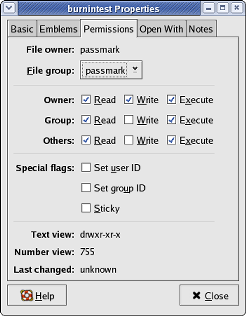
Change the permission to the ones displayed above.
To do so via the command line, from the Terminal, type "chmod 755
file_name".
Note: To change ownership of files/folders, use "chown user_name:user_group
file_name".
(Type "man chmod" or "man chown" if you need assistance).
Q. Which Linux distributions have been tested that meet the system requirements?
For version 4 see the list of distributions on the BurnInTest Linux product page.
The following distributions have been tested (or reported) to meet the requirements (for version 3):
- Fedora Core 11 (with Qt 4.6.2 installed)
- Kubuntu 10.04
- OpenSUSE 11.3 RC2
The following distributions have been tested (or reported) to meet the requirements (for version 2):
- Fedora Core 4
- SUSE 10.0
- Gentoo 2005
- CentOS 4.2
- Siemens Industrial Linux v9.0
- Redhat Enterprise ES 4
- Slax 5.0.9 (live-cd) and Slax 6.1.2
- Knoppix 4.0.2 (live-cd)
- Fedora Core 5
- Fedora 9 i686 KDE (live-cd)
- CentOS 5.1 i386 (live-cd)
- Suse 10.0 DVD (live-cd)
- Kubuntu 7.10 dvd i386 (Only the command line version runs due to missing FAM library)
- SLAX 5.0.9 (live-cd)
- Knoppix 4.0.2 (live-cd)
To aid us in making the software better for you, please e-mail us at help@passmark.com if you have tested successfully in another Linux distribution or if you encountered issues with running BurnInTest for Linux on your system.
Q. Which Linux versions have been tested with the Command Line version of BurnInTest?
Tested using BurnInTest Linux Version 2:
- CentOS 4.4 (32-bit)
- CentOS 4.5 (64-bit)
- CentOS 5.0 (64-bit)
- Debian 4.0 (32-bit)
- Fedora Core 3 (64-bit)
- Fedora Core 6 (32-bit)
- Redhat EL 4.0 (64-bit)
- Redhat EL 5.0 (32-bit)
- Ubuntu 6.06 LTS (32-bit)
A list of Linux distributions that BurnInTest for Linux have been tested successfully can be found here.
Q. Will BurnInTest work in ChromeOS/Chromium
In older vesions of ChromeOS yes, but only the command line version will run, the GUI version requires too many libraries that are not yet fully supported on ChromeOS (eg Qt).
To access the command line:
Open a chrome shell: ctrl + alt + t
Start a new bash shell: shell
Note: Chrome OS sets the "noexec" flag when mounting the home filesystem.
You can either remount the file system with the "exec" flag or copy BurnInTest to a location with executable permission e.g. /usr/local
In newer versions of ChromeOS some dependant libraries are no longer available, V5 contains these libraries in the downloads.
In order to run in the Chrome development shell you will need open a chrome shell and start a new bash shell like above.
Due to the “noexec” flag for all mountpoints you will need to remount with exec support, for example move the move the BurnInTest files into /tmp and then use the command “sudo mount -o remount,exec /tmp”.
Then you will need to set the library path to check the current directory, “export LD_LIBRARY_PATH=$LD_LIBRARY_PATH:./” and then you can launch BurnInTest “sudo ./bit_cmd_line_x64”
Q. Will BurnInTest work in Windows Subsystem for Linux
Yes. BurnInTest Linux can be run in WSL as long as the installed distro also meets the System Requirements as outlined on the download page.
Q.Can I run BurnInTest for Linux if I am booting my Linux distribution from a CD/DVD?
Certain Linux distribution provide a live-cd/dvd that allow you to boot
from without installing it onto your hard-drive.
If you intend to run it this way, please note the following:
i) See below about running the CD test in a Live CD envirnoment.
ii) Because the file system is mounted temporarily, all files written will
be lost if you reboot the machine.
If you want to keep a copy of the logs, please copy it to a network drive
or to a USB/FireWire drive.
Q. How do i run the CD test in a Live CD environment?
Because BurnInTest Linux's CD/DVD test defaults to using "PassMark
Test CD/DVD", if you intend to test the CD/DVD
drive that is holding the live-cd/dvd, please choose either the "Data
CD read and verify" or the "No CD in Drive" test
method. For a description of what these test means, please refer to the
help file. However, if you have 2 CD Drives
and you also have a PassMark Test CD/DVD, you can choose to test "PassMark
Test CD/DVD" for the 2nd drive.
Some live cd's (like Slax 6) hide the current mount point of the cd (to something like /mnt/live), in these cases you will need to either manually mount the cd drive so it is mounted at the normal mount point (eg /mnt/hdc). You can also boot most live cds in a mode that will copy the cd to RAM and free up the drive, then you can cycle the cd try after booting to auto mount the cd or do it manually.
Q. Is the Windows version of BurnInTest included when
I purchase BurnInTest for Linux?
No, they are 2 separate commercial software products and have to be purchased separately.
Q. Is there a command line (non-GUI) BurnInTest Linux?
Yes, the command line version is including in the BurnInTest Linux download.
Q. My License key does not seem to work.
Both the User Name and Registration Key must be correctly
entered before the software turns itself
into the registered version. See this step by step
guide for help.
Note: If you are an existing BurnInTest (Windows) user and have downloaded
BurnInTest (Linux) for
trial purposes,keys from previous Windows versions will not work in the
Linux version.
Purchase BurnInTest for Linux now to
receive your new User Name and Registration Key for BurnInTest (Linux).
Q. The test run stops after 15 minutes, why ?
With the shareware version the tests will only run for
15 minutes at a time. After the software has been purchased,
the time is unlimited. Note that you can still get a much longer test
run in the shareware version by clicking on the
Go button each 15 minutes After the software has been purchased the test
duration can be increased from the,
‘Auto Stop’ field in the ‘Test preferences’ window.
Q. Can I get source codes for BurnInTest Linux?
No. We do not distribute source codes for BurnInTest Linux.
Q. I get "OpenGL is not installed or is not installed correctly"
when I try to run 3D Graphics test, why?
Certain Linux distribution does not have Open GL as part of its package.
Hence, you will need to download the
appropriate Open GL packages and install it. To get more information on
Open GL, visit http://www.opengl.org.
Q. I get "Could not determine type of test CD/DVD" when I
try to run CD/DVD test, why?
Please check that you have a PassMark
Test CD/DVD in the selected CD drive(s).
Certain Linux distribution provide a live-cd that allow you to boot from
without installing it onto your hard-drive.
Because BurnInTest Linux's CD/DVD test defaults to using "PassMark
Test CD/DVD", you will get this failure message.
You can still test the CD Drive by choosing either the "Data CD read
and verify" or the "No CD in Drive" test method.
For a description of what these test means, please refer to the help file.
However, if you have 2 CD Drives and you also have a PassMark Test CD/DVD,
you should not get this error for the
2nd drive if you choose the "PassMark Test CD/DVD" for the 2nd
drive.
Q. I get "File system not mounted" when I try to run Disk
Test, why?
BurnInTest Linux does not perform mounting of drives/partitions. To
run Disk Test on a drive/partition, it needs to be mounted.
To find out what devices are mounted, use "df -ahPT" on the command
line. A sample output is shown below:
[passmark@localhost src]$ df -ahPT
    Filesystem    Type    Size  Used Avail Use% Mounted on
    /dev/sdb2     ext3     20G  7.8G   11G  42% /
    none          proc       0     0     0   -  /proc
    none         sysfs       0     0     0   -  /sys
    none        devpts       0     0     0   -  /dev/pts
    usbfs        usbfs       0     0     0   -  /proc/bus/usb
    none         tmpfs    506M     0  506M   0% /dev/shm
    none   binfmt_misc       0     0     0   -  /proc/sys/fs/binfmt_misc
    sunrpc  rpc_pipefs       0     0     0   -  /var/lib/nfs/rpc_pipefs
    /dev/hdc   iso9660    701M  701M     0 100% /media/cdrom1webkit
/dev/sdc      vfat    250M  178M   72M  72% /media/WOW___USB
Q. I get "Permission error writing to disk"
when I try to run Disk Test, why?
Disk Test attempts to write to and read from the disk's
partitions that were configured to run. Hence, we need to have
read/write access to these devices' partions. From the command line, use
"cat /etc/mtab" to see what permission you
have on these devices. A sample output is shown below:
[passmark@localhost src]$ cat /etc/mtab
    /dev/sdb2 / ext3 rw 0 0
    none /proc proc rw 0 0
    none /sys sysfs rw 0 0
    none /dev/pts devpts rw,gid=5,mode=620 0 0
    usbfs /proc/bus/usb usbfs rw 0 0
    none /dev/shm tmpfs rw 0 0
    none /proc/sys/fs/binfmt_misc binfmt_misc rw 0 0
    sunrpc /var/lib/nfs/rpc_pipefs rpc_pipefs rw 0 0
    /dev/hdc /media/cdrom1 iso9660 ro,nosuid,nodev,fscontext=system_u:object_r:removable_t...
    /dev/sdc /media/WOW___USB vfat rw,nosuid,nodev,sync,noatime,fscontext=system_u:object_r...
/dev/fd0 /media/floppy vfat ro,nosuid,nodev,fscontext=system_u:object_r:removable_t...
It means the device /dev/sdb2 is mounted at "/"
with "rw" (read/write permission) and is of file system type
ext3.
This appear to be our start-up disk and will appear as "Hard Disc
(sdb2) [/]" in Disk Test Preferences. /dev/fd0
is mounted at /media/floppy with "ro" (read only permission)
and is of file system type "vfat". This appear to be
our floppy disk and will appear as "Media (floppy)" in Disk
Test Preferences. Hence, if we are trying to run
disk test on "Media (floppy)" in this case, we will get this
error.
Q. How does BurnInTest Linux determine what devices
I have for Disk Test?
BurnInTest Linux checks 2 files to determine the devices
that your system has. First, it reads /etc/fstab to determine
what kind of media types your system have and where it could be mounted.
An example of /etc/fstab is shown below:
[passmark@localhost src]$ cat /etc/fstab
    # This file is edited by fstab-sync - see 'man fstab-sync' for details
    LABEL=/tmp              /                       ext3    defaults        1 1
    none                    /dev/pts                devpts  gid=5,mode=620  0 0
    none                    /dev/shm                tmpfs   defaults        0 0
    none                    /proc                   proc    defaults        0 0
    none                    /sys                    sysfs   defaults        0 0
    /dev/VolGroup00/LogVol01 swap                    swap    defaults        0 0
    /dev/hdd                /media/cdrom            auto    pamconsole,fscontext=system_u...
    /dev/hdc                /media/cdrom1           auto    pamconsole,fscontext=system_u...
/dev/fd0                /media/floppy           auto    pamconsole,fscontext=system_u...
From this example, BurnInTest is able to determine that
your system have a Hard Disk mounted at "/" and is of
file system type "ext3". It is also able to determine that your
system have 2 CDROM drives and a floppy drive.
(Note: This does not mean there is any media in the CDROM and floppy drives)
Next, to determine if your CDROM and floppy drives actually
have any media in them, it checks the file /etc/mtab.
A sample of /etc/mtab is shown below:
[passmark@localhost src]$ cat /etc/mtab
    /dev/sdb2 / ext3 rw 0 0
    none /proc proc rw 0 0
    none /sys sysfs rw 0 0
    none /dev/pts devpts rw,gid=5,mode=620 0 0
    usbfs /proc/bus/usb usbfs rw 0 0
    none /dev/shm tmpfs rw 0 0
    none /proc/sys/fs/binfmt_misc binfmt_misc rw 0 0
    sunrpc /var/lib/nfs/rpc_pipefs rpc_pipefs rw 0 0
    /dev/hdc /media/cdrom1 iso9660 ro,nosuid,nodev,fscontext=system_u:object_r:removable_t...
/dev/fd0 /media/floppy vfat ro,nosuid,nodev,fscontext=system_u:object_r:removable_t...
As you can see, we have found a read-only media in the
floppy drive and a read-only media in /media/cdrom1.
If you now eject you floppy, /etc/mtab will be become:
[passmark@localhost src]$ cat /etc/mtab
    /dev/sdb2 / ext3 rw 0 0
    none /proc proc rw 0 0
    none /sys sysfs rw 0 0
    none /dev/pts devpts rw,gid=5,mode=620 0 0
    usbfs /proc/bus/usb usbfs rw 0 0
    none /dev/shm tmpfs rw 0 0
    none /proc/sys/fs/binfmt_misc binfmt_misc rw 0 0
    sunrpc /var/lib/nfs/rpc_pipefs rpc_pipefs rw 0 0
/dev/hdc /media/cdrom1 iso9660 ro,nosuid,nodev,fscontext=system_u:object_r:removable_t...
The entry for /media/floppy is now gone.
Q. Are PassMark USB 2.0 Loop back plugs supported in Linux.
Yes, from version 2 BurnInTest Linux includes a USB test that connects to PassMark USB2 plugs.
Q. Can I test my USB ports without a PassMark USB2 plug? How ?
Yes. The recommended way to test USB ports using BurnInTest Linux is
to connect an external USB device
(flash drive or hard disk) via the USB port and test the connectivity with
the USB device using the BurnInTest disk test.
Note: Similarly, to test external memory card readers/writers or other removable
drives, it is recommended
that the BurnInTest disk test is used.
Q. How does BurnInTest work? Doesn't it just wear my
computer out ?
Societies’ reliance on computers means that the cost
of hardware failure can be enormous (and embarrassing).
BurnInTest thoroughly exercises PC hardware in the shortest period of
time so intermittent or hidden problems
are found before they turn into a disaster. The typical life span of the
main moving component in a PC, the
hard drive, is quoted at around 300,000 hours by manufacturers such as
Seagate. The use of BurnInTest for a
6 to 12 hour period would thus have a no significant impact on the life
of the drive. On the other hand, it would
allow manufacturing faults and intermittent faults to be detected in a
controlled manner when the consequences
of failure are minimal.
Q. How long should I run BurnInTest for?
Not an easy question. In our opinion, the chances or finding
a problem in the first hour are relatively high,
(the system gets hot, it's the first run across the disk / CD and the
first use of some of the drivers).
Then every hour after that, the chance of finding a hardware problem drops
significantly. The extra benefit
of doing 12 hours compared to 6 hours is thus probably not great. Other
nice technique is temperature cycling.
All major manufacturers of electronic equipment do this, they have large
ovens and fridges in which they test equipment.
The expansion and contraction of components and solder joins brings to
light many problems. You could do
6 hours On, 6 hours Off, then 6 hours On, to get some limited temperature
variation like this. NASA and the Army
load their equipment on to vibration machines, but this may be going too
far for home / office use.
Q. Can I use the configuration files from Windows for
BurnInTest for Linux?
No. The configuration files are not compatible between
them. However, if you accidentally replaced
"LastUsed.cfg" with one belonging to Windows version of BurnInTest,
you will get a dialog warning you
of an invalid configuration file and it will be overwritten with a default
configuration for BurnInTest Linux.
It is hence not possible to load a configuration file belonging to BurnInTest
for Windows.
Q. Can I test my FireWire ports ? How ?
Yes. The recommended way to test FireWire ports using
BurnInTest is to connect an external hard disk
via the FireWire port and test the connectivity with the disk drive using
the BurnInTest disk test.
Note: Similarly, to test external memory card readers/writers or other
removable drives, it is recommended
that the BurnInTest disk test is used.
Q. Are there any precautions I need to be aware of when running BurnInTest
Linux?
Yes. If you are running 3D or 2D Graphics Tests, it is advised that you turn off the system's screensaver.
More instructions and precautions
for thorough and careful testing can be found here.
Q. My system crashed after X days of running BurnInTest
but after a reboot was OK again.
See the general comments below about system crashes.
Q. My system is unstable. What can I do?
See general instructions for tracking down a fault
Q. Which tests require administrator
privileges and why?
You need to have administrator privileges to run the following
test:
1. Serial Port Test:
Linux character devices are usually root access only. For this test, we
might be accessing
/dev/ttyS0 - /dev/ttyS63 depending on your configuration.
2. Parallel Port Test:
Root access is required to access memory location for the parallel ports.
(lp0 @ 0x378, p1 @ 0x278 or lp2 @ 0x3BC)
3. Memory Test:
As we are locking physical memory to prevent caching, root access is needed
to call this function.
4. Network Test:
Root access is required to create raw sockets for the address family AF_INET.
Q. How do I know if I am logged in as a System Administrator
or root user?.
When you type "echo $UID" on the command line,
your user ID will be 0 (i.e. zero) if you are logged in as a root user.
Alternatively, you can use the command "id". An example is shown
below:
[passmark@localhost src]$ echo $UID
    500
    [passmark@localhost src]$ id
    uid=500(passmark) gid=500(passmark) groups=500(passmark) context=user_u:system_r...
    [passmark@localhost src]$ su
    Password:
    [root@localhost src]# echo $UID
    0
    [root@localhost src]# id
uid=0(root) gid=0(root) groups=0(root),1(bin),2(daemon),3(sys),4(adm),6(disk),10(wheel)...
Q. I get the error, "root(admin) access needed
to run this test" with the Network test.
If you don't have administrator privileges, you will get
this error with the Network test. You need to have
administrator privileges to run this test. Because we are creating Raw
socket for this test. Access to Raw Sockets
is granted on a per-transport basis. For the address family AF_INET, only
administrators have the access
necessary to create Raw Sockets.
Q. I get the error, "root(admin) access needed
to run this test" with the Parallel Port test.
If you don't have administrator privileges, you will get
this error with the Parallel Port test. You need to have
administrator privileges to run this test because we are accessing memory
locations for the Parallel ports.
Q. I get the error, "root(admin) access needed
to run this test" with the Serial Port test.
If you don't have administrator privileges, you will get
this error with the Serial Port test. You need to have
administrator privileges to run this test because we are accessing character
devices /dev/ttyS0 - /dev/ttyS63
(depending on your configuration). Linux character devices are almost
always root access only.
Q. I get the error, "root(admin) access needed
to run this test" with the Memory test.
If you don't have administrator privileges, you will get
this error with the Memory test. You need to have
administrator privileges to run this test because we are locking memory
to prevent caching
Q. I don’t need to do any more tests, how do I
uninstall BurnInTest ?
Delete the folder that it was previously installed in or delete the contents of the folder.
Q. I’ve lost my registration key, how can I get
it back?
Mail us at help@passmark.com telling us the name that was used to register the software, your E-Mail address, the name of the product (BurnInTest), and roughly the date when the software was purchased. We will mail your key back out to you.
Q. BurnInTest process is being closed by kernel due to "Out of Memory".
Some Linux distribution have an aggressive Out Of Memory killer process (oom-killer), where in low memory situations picks the highest memory using process and forcibly kills it, so when running the RAM test this is always BurnInTest.
You can try running the RAM test by itself which may stop the oom-killer process being invoked or look at how to modify (or disable) the oom-killer for your Linux distribution to prevent it. Note that disabling this is not really recommended since if oom-killer is invoked, things have gone awry memory-wise. More info can be found here.
If the problem persists, try adding extra memory to the system or run Memtest86 instead.
Q. When trying to launch the GUI version I get the error "qt.qpa.plugin: Could not find the Qt platform plugin "xcb" ".
There is an issue with the QT configuration on the system and no QT platform plugin has been set.
You can work around this by launching BurnInTest with the command line argument "-platform eglfs".
Q. When trying to launch the GUI version using sudo I get the error "XDG_RUNTIME_DIR not set" and "QXcbConnection: Could not connect to display :0".
You will need to authorise the root user to connect to the current display using "xhost +SI:localuser:root".
Here are some general comments
about occasional system crashes.
Problems can occur if your computer runs out of system resources because there is some process or driver that doesn't release memory, handles, semaphores, etc.. back to the operating system. After a long period of uptime the operating system runs out of resources and dies a terrible death. What can you do about this? Identify the offending software, if you can, and disable it. This can even be a bug in the operating system however.
Computer can have a Random Crash. What do we mean by this?
Many things can bring down a computer. Typical things would be a spike
on the power line, a strong burst of Electromagnetic interference (e.g.
Mobile phones, electric motors, etc..). If your system is running at its
limits due to overclocking or your components are running at the top of
their temperature range, small external influences can push your system
over the edge, resulting in a terrible death. If you believe in Chaos
theory (and most scientists now do), then you also have to believe that
computers will just crash unexpected from time to time, how often would
depend on the design tolerances built into your hardware. What can you
do about this?
- Do as the military do. Buy military specification computer hardware
that has higher tolerances.
- Do what NASA does. Run 3 computers at the same time, expecting one to
give the wrong answer or crash.
- Do what most big banks do. Run a hot standby system, that can takeover
the job of the main computer in a few seconds.
- Do what the Telecommunications industry does. Buy equipment with N+1
redundancy and switch traffic off the faulty hardware. Almost all Telecommunications
hardware also has a built in Auto-reboot function. Why? because they know
it will eventually fail.
Timing issue. Some software / hardware bugs only show up in very very rare occasions. Classic examples of this are Hardware or Software Interrupts occurring in a critical section of code. What can you do about these types of bugs? Almost nothing as a user. They have plagued software since the first line of code was written they are very difficult problems to find and are almost never picked up during software testing. Problems can occur in Drivers, the operating system, your hardware, everywhere. As everyone is always on a tight deadline, endurance testing often doesn't make it into a software developers test plan.
Mundane program bugs are, of course, also a major cause of failure.
Fault finding
What follows is some hints on how to go about finding the cause of a particular system instability. (i.e. The system locks up, you get the windows blue screen, etc..). We don’t want to try and explain the steps involved in each of these processes, they are just points that may warrant future investigation.
- Check you don't have any viruses.
- Check the drive for errors using the system's disk checking tool or with command line tools like 'fsck' or 'badblocks'.
- Check that space is available on the disk for the swap files.
- Have a look through the issues in the next section, "Precautions
for thorough and careful testing".
- Don't run all the BurnInTest tests at once. Run just the 2D graphics,
then run just the 3D graphics, then just the disk, etc.. This will allow
the problem to be isolated to one area.
- If you suspect hardware, and you know what you're doing, pull out
all the "optional hardware", eg LAN cards, I/O cards and see
if the system is more stable.
- Once again, if you know what you're doing, start swapping out components
of the system to see if the fault can be localized. Obviously you'll
need some spare hardware to do this.
- If you suspect Open GL problems, possibly with bad Open GL installation
or missing libraries, consider running your system's OpenGL's screensaver
or any OpenGL applications or games to see if problem persist. For more
help, go to http://www.opengl.org/.
- Faulty RAM may not always be detected by the memory test. It may manifest
itself as a disk fault of system crash.
- If you're really stuck you may want to try a reinstallation of your
operating system on a reformatted disk. Think carefully about this option
before you attempt it, there are lots of good reasons why you don't
want to reformat your hard disk.
- Make sure you've got the most up to date software drivers for your
hardware. Drivers are a never-ending source of problems.
- Check that you haven't ended up with an over clocked CPU and don't
know about it.
- Check that you haven't purchased the cheapest and nastiest hardware in the hope of saving a couple of dollars (or pounds, francs, etc). Often it may not be the cheap hardware that causes problems but the quality and support of the software drivers that comes with the hardware that are a problem. Don't shop on price alone, check out the support and product reviews.
Precautions for thorough and careful testing
For a hardware test to be useful several precautions need to be taken. Failure to take into account these factors may result in tests being misleading or other unwanted results.
- Stop all other applications before running BurnInTest. BurnInTest can be run in the background but it just doesn't seem prudent to do any important work when you're testing a computer to see if it will fail. In any case BurnInTest will place such a load on the system that any other applications will run at a snails pace. Not having other applications running also frees up more RAM that can be used by the Memory test.
- Back-up any important files before you start. BurnInTest can simulate many days of typical office PC use in a few hours, this increases the risk of hardware failure. Note that the testing process itself doesn't touch any existing files on the hard disk or floppy disk.
- When testing multiple disk drives at the same time you may not want to test multiple partitions that are on the same physical drive at the same time. Doing this can result in an enormous amount of seeking between partitions and not as much reading and writing.
- PassMark recommends running BurnInTest just after you install a PC for the first time, as this is the ideal time to find a problem. The PC will be still under warranty and you can't lose any of your data (because you haven't loaded any). Any disruption caused by a failure will be minimal.
- Remember that BurnInTest does not create problems in your hardware, it just helps you find them in a controlled manner. BurnInTest doesn't use any nasty programming tricks to try and make your hardware fail. It uses the same functions and procedures that standard Linux applications and file servers use. If your computer fails when running BurnInTest, it was going to fail in the near future anyway !
- If you only want to test a particular component of the computer, turn the other tests off. There's no point using the CD-Drive when you only wanted to test the new hard drive.
- Doing a successful test run doesn't mean that the computer will never fail. Software problems, viruses, and the fact that no computer component has an unlimited life span means that precautions need to be taken. Having good BurnInTest results is NOT a substitute for making good file backups in the future.
- Because BurnInTest doesn't delete any of the existing files from a disk, this occupied portion of the disk will not be tested. Thus the more free space that the disk has before the test, the larger the portion of the disk that will be tested.
- When using the CD test with a music CD verify that the music is being played clearly though the PC's sound system.
- On some new computers, the warranty may be voided if you open up the case. Check your warranty before you start poking around in the case.
- Old computers tend to fill up with dust over the period of many years. This dust layer can cause heat build up and even short circuits. Check for dust build-up in old computers before you start.
- Check the computer has adequate ventilation & check all the fans are in good working order.
- Check that the computer isn't full of bugs. (i.e. the insect type). Depending on where you live, insects can be a real problem. The term 'Computer Bug' was coined after a dead moth was found to have shorted out one of the first computers build. In Australia, cockroaches are the most common cause of failure in microwave ovens. Recent studies have even suggested that some insects are attracted to electro-magnetic fields. So watch out !
- There are many cases where a software bug may appear to be a problem with the hardware. Knowing who or what to blame isn't easy. Check with your hardware manufacturer(s) from time to time in case they have released new software that fixes some problems they may have found. The hardware components that in general have the most problems with their 'Driver' software are, Video cards (especially the 3D functions), Sound cards and CDs.
- By using the Network test you can test both your computer and the network it is connected to. If an error does occur it may be difficult to determine the location of the error. If you are using an Internet address then it is very likely that any transient errors are the result of problems on the Internet. The best compromise is probably to set the test address to the address of a machine on your local area network, (if you have one).
- When selecting a Serial or Parallel port to use for loop back testing, ensure that the port selected is not already in use by the system. (e.g. by a mouse or printer).
- Because of limitations in the memory test, faulty RAM errors may not be picked up by the test and faulty RAM can often manifest itself in different ways. These include disk I/O errors, system crashes and lockups.